
This article provides step-by-step instructions for configuring an alternative phone number for SMS-based multi-factor authentication (MFA) in Microsoft 365. Setting up a backup authentication method ensures you can maintain access to your account even if your primary device is unavailable.
User Self-Service Setup
Step 1: Access Security Settings
- Navigate to https://mysignins.microsoft.com/security-info
- Sign in with your Microsoft 365 credentials
- If prompted, complete authentication with your current method
Step 2: Add Alternative Phone Number
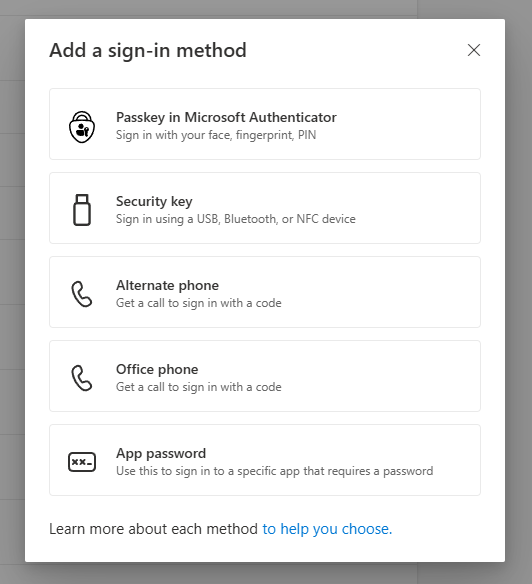
- Click the “+ Add method” button
- From the pop-up window, choose the “Phone” or “Alternate phone” option
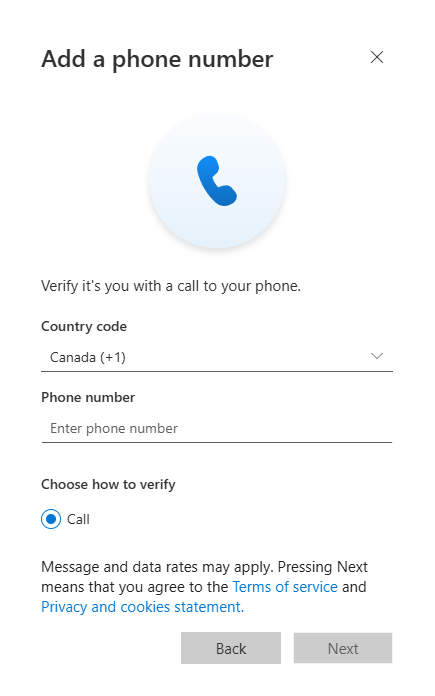
- Choose the correct “County Code“, then enter the phone number.
Step 3: Configure SMS Settings
- Select “Text me a code” as the preferred method
- Click “Next”
Step 4: Verification
- You will receive a 6-digit code via SMS to the alternative number
- Enter the code in the verification field
- Click “Next” to complete setup
Consider Other Alternatives
We also high recommand that you explore other phishing-resistant authentication methods we offer, such as:
- Passkey (FIDO2)
- Passkey in Microsoft Authenticator
- Windows Hello for Business
- Certificate-based authentication
Escalation Path:
Please get in touch with [email protected] if you encounter any issues.